INTRODUCING PIGEON POST v0.3.0 · Koha plugin

Every Koha email,
accounted for.

See what your library sent, what bounced, and why.

Pigeon Post adds an email dashboard to Koha’s Tools menu. Lifetime and date-range counts, failure reasons, SMTP status lights, and tools that stop bad addresses and forgotten print notices from clogging the queue. Every change is logged, and every change can be undone.

Koha 22.11+Tools → Pigeon Post DashboardNothing leaves your KohaOpen source · GPL-3.0
MAIL SERVER STATUSCHECKED JUST NOW
  • Main librarySTARTTLS · default
    UP · 194 ms
  • Branch relayTLS handshake failed
    SLOW
  • Old serverConnection refused
    DOWN
12.6%failure rate
3addresses over the threshold
0 minoldest waiting
Connects and greets. Never logs in or sends.

Illustration. Server names are examples.

The Pigeon Post dashboard

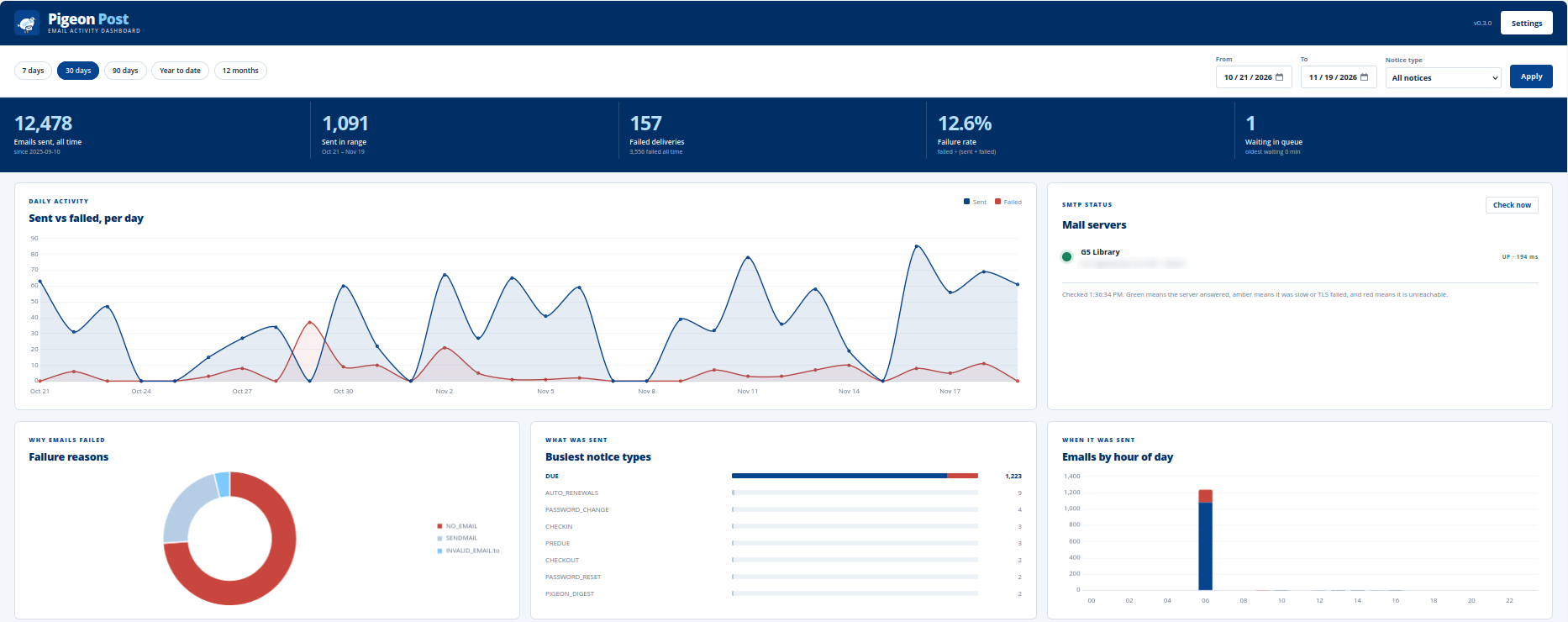
The Pigeon Post dashboard in Koha: a navy band with 12,478 emails sent all time, 1,091 sent in the last 30 days, 157 failed deliveries and a 12.6% failure rate; a daily sent-versus-failed line chart; a green SMTP status light; a failure-reasons doughnut; busiest notice types; and emails by hour of day.
Running on a public library’s Koha 25.05. The patron table is cropped out and the mail server’s name is blurred.
1page for every email number staff ask about
0queue rows deleted. Changes are marks, not removals
100%of cleanups logged, with an Undo button
22.11+Koha versions supported, tested on 25.05

WHAT IT DOES

A homing instinct
for your notices.

Koha sends holds, overdues, renewals and password resets all day. Pigeon Post shows you how that’s going, and helps fix what keeps failing.

01

Counts that survive Koha’s cleanup

Emails sent all time, plus sent, failed and failure rate for any date range or notice type. Koha’s nightly cleanup purges old queue rows, so Pigeon Post keeps its own daily totals and the all-time number stays honest.
7 / 30 / 90 daysYear to dateCustom range
02

Charts that explain the numbers

Sent versus failed per day, why emails failed, the busiest notice types and sending by hour. A warning appears when the oldest waiting email is over an hour old, which usually means the queue job has stopped.

03

Red, amber or green mail servers

One light for every SMTP server configured in Koha. The check connects and says hello, then hangs up. It never logs in and never sends mail.

SSLSTARTTLSResponse time
04

Bad addresses, cleared safely

Finds addresses that failed X times in a row since they last worked, and clears them so the queue stops retrying. Preview first, select what to clear, undo any time. Optional nightly mode pauses itself when it looks like the mail server is down.

Threshold you chooseOutage guardPer-night cap
05

Patrons who want email but have no address

Lists patrons whose messaging preferences say email but whose record has no address Koha can use, so every notice fails. Download the list for the front desk, or move their notices to SMS or print in one step.

CSV exportSMS or printFollows EmailFieldPrimary
06

Print notices nobody printed

Print notices wait until someone runs the print job. Pigeon Post shows how many are waiting and how old they are, and clears the ones older than 90 days (or your choice), by hand or nightly.

07

A weekly digest in your inbox

Sent and failed counts with the change from last week, top failure reasons, busiest notices, cleanup activity, the print backlog and SMTP status. It goes through Koha’s own mail queue to whoever you choose.

SETTINGS

Your rules.
One page.

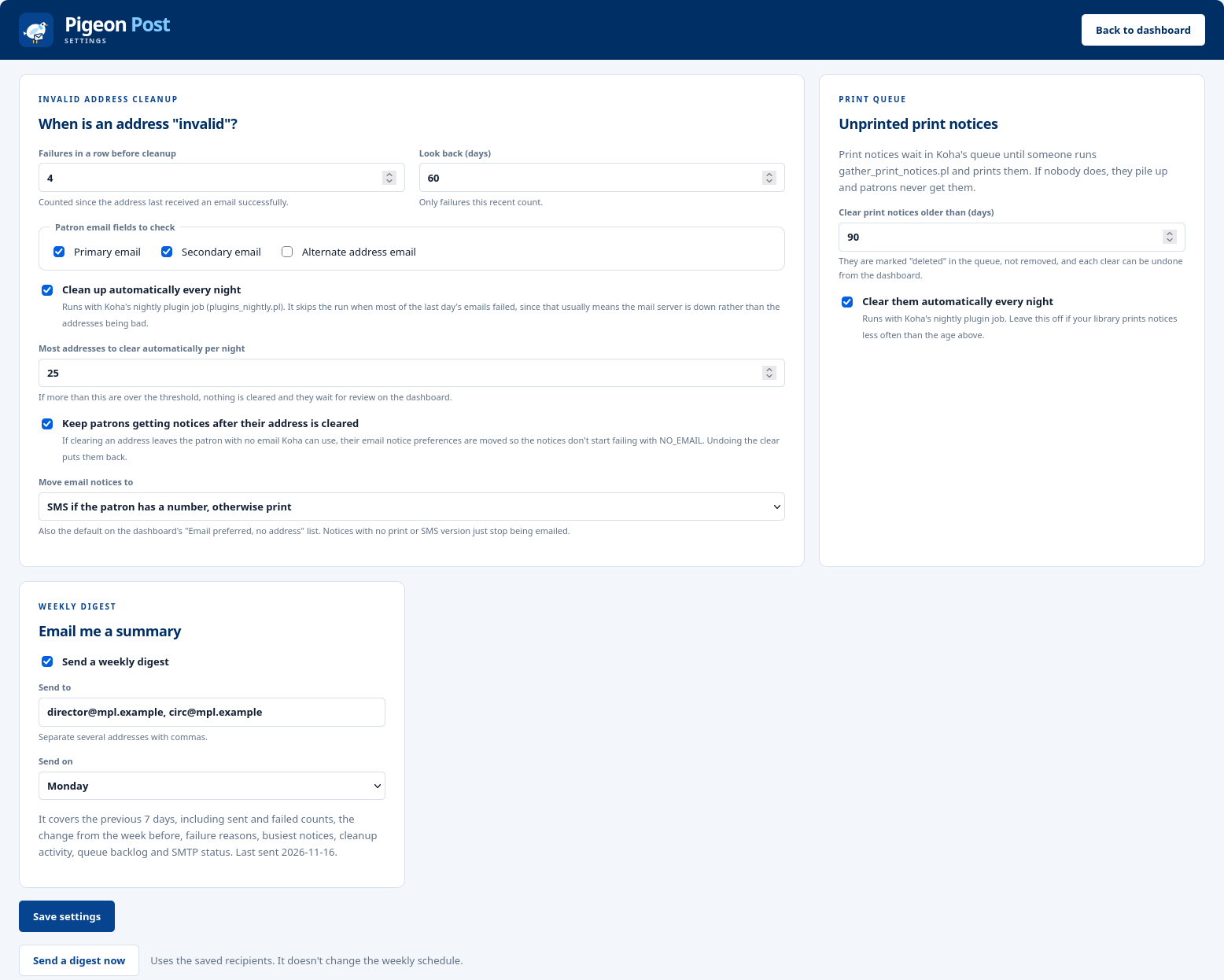
Choose how many failures make an address invalid, which patron fields to check, where email notices go when an address is cleared, how old a print notice can get, and who receives the weekly digest.

  • Every automatic job has its own switch
  • Caps and age limits you set
  • “Send a digest now” to preview the email
The Pigeon Post settings page: invalid address cleanup with 4 failures in a row over 60 days, primary and secondary email checked, nightly cleanup capped at 25 addresses, email notices moved to SMS or print after a clear; print notices cleared nightly after 90 days; and a weekly digest sent every Monday.
Sample settings for illustration.

BUILT FOR LIVE LIBRARIES

Careful with
patron data.

The dashboard only reads. Anything that changes Koha needs a staff member with permission to edit patrons, shows you what it will do first, and keeps a record you can reverse.

  • Nothing is deleted.Queue rows are marked “deleted” and stay in the table. Undo puts them back.
  • Preview, then confirm.Cleanups list exactly which patrons and notices are affected before anything changes, and re-check just before they run.
  • Automatic modes start off.Nightly address and print cleanup are opt-in, with an outage guard and a per-night cap on addresses.
  • Permission-gated.Viewing needs Koha’s plugin tool permission. Changes also need Patrons → edit_borrowers.
  • Stays inside Koha.No outside services and no tracking. Charts are bundled with the plugin. The digest uses your own mail server.
  • Clean uninstall.Removing the plugin drops only its own tables.

REQUIREMENTS

Ready when your Koha is.

Upload the plugin, open Tools, and the numbers are there. Nightly features use the plugin job Koha already ships with.

How do I install it?

Download pigeon-post-v0.3.0.kpz from the GitHub release, then in Koha go to Administration → Manage plugins → Upload plugin. Open it from Tools → Pigeon Post Dashboard. The release page lists the SHA-256 checksum, and the source code is on GitHub.

Which Koha versions work?

Koha 22.11 and later, with plugins enabled. It runs on Koha 25.05 in production at a public library. Failure reasons need Koha’s failure_code column, which arrived in 22.05/22.11.

What do the nightly features need?

Koha’s plugins_nightly.pl job. Debian package installs already run it every night from /etc/cron.daily/koha-common. It saves the daily totals, runs the cleanups you’ve turned on, and sends the digest on your chosen day.

Does it work behind a web application firewall?

Yes. The dashboard makes one script request and then loads its data one call at a time, so rate limiters aren’t tripped. If a firewall does block something, the page says which request failed and with what status, instead of spinning forever.

Who can see it?

Staff with Koha’s plugin tool permission see the dashboard. The cleanup sections, the no-address list and the settings also need permission to edit patrons.

GIVE YOUR NOTICES WINGS

Find out where your
library’s email goes.

Free and open source under GPL-3.0. Pigeon Post is part of the koha.pro plugin family from Lightwave Library.